
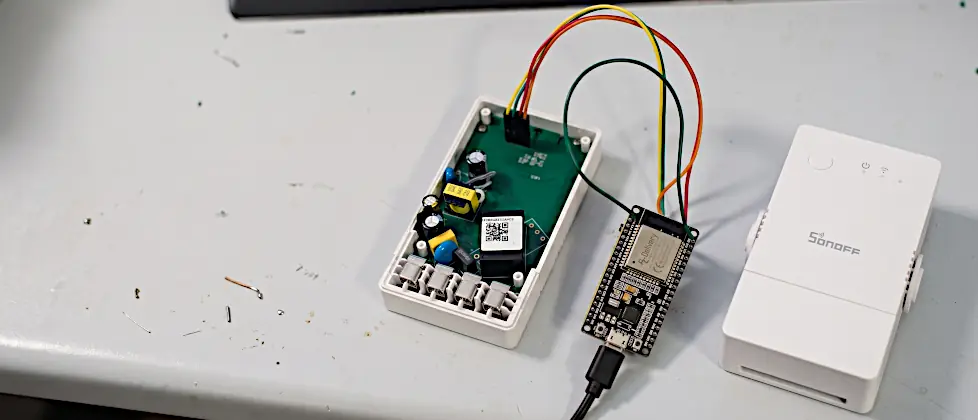
Sonoff POWR316 with Tasmota: This is the combination I use to monitor the power consumption of my air conditioner. Flashing the Sonoff POWR316 with Tasmota sounds like a ten-minute job. For me, it turned into a whole afternoon. The POWR316, also known as the Sonoff POW Origin, has an ESP32 on board and behaves differently during flashing than older Sonoff devices with an ESP8266. In this article, I’ll show you which errors I ran into, what they mean, and which approach finally worked reliably: an ESP32 dev board as a USB-to-serial adapter combined with Espressif’s web flasher esptool-js.
tasmota32.factory.bin to address 0x0. The most common stumbling block is the power supply: many USB-TTL adapters cannot deliver enough current for the ESP32. What worked reliably for me was an ESP32 dev board as a programmer together with the flasher esptool-js.Tested in October 2026 with: Sonoff POWR316 (ESP32-D0WD-V3, 4 MB flash), Tasmota 16.0.0 (German build tasmota32-DE), ESP32-WROOM-32 dev board with CP2102 chip, esptool-js in Chrome on Windows.
Why I rely on Sonoff POWR316 Tasmota
I am expanding my smart home step by step. This time, I want to measure the power consumption of my split air conditioner. I want to know how much it actually uses for cooling in summer and for heating in spring and autumn, and analyze the data in my smart home system.
For tasks like this, I like to use Sonoff. The devices are inexpensive, easy to integrate and mount nicely on a DIN rail. The POWR316 switches up to 16 A and measures voltage, current, power and energy. That makes it a good fit for an air conditioner.
With the original firmware, however, the devices depend on the eWeLink cloud. I want to control my devices locally, without a detour via a server abroad. That’s why every Sonoff device I own runs Tasmota. Tasmota is a free, open-source firmware for ESP chips. It comes with its own web interface, speaks MQTT and integrates with my OpenCCU-based setup as well as with Home Assistant, ioBroker, openHAB or FHEM.
Unfortunately, it’s almost always the same story: whenever I plan an expansion, there’s a new Sonoff generation, and flashing works a little differently than the last time. So that you don’t have to spend as much time trial-and-erroring as I did, I documented everything along the way.
What’s inside the Sonoff POWR316?
Before you get started, you should know what hardware you’re dealing with. This is what esptool-js read from my device during flashing:
| Property | Value |
|---|---|
| Chip | ESP32-D0WD-V3 (revision 3) |
| Cores / clock | Dual core, 240 MHz |
| Wireless | Wi-Fi and Bluetooth |
| Flash memory | 4 MB, DIO mode |
| Matching Tasmota build | tasmota32 (I used the German build tasmota32-DE) |
The key difference from the ESP8266: the ESP32 draws considerably more current at startup and especially when Wi-Fi is switched on, briefly 300 to 500 mA. That turned out to be my downfall, more on that in a moment.
When you first connect, check which chip the flasher reports. If it says “Dual Core”, use the regular tasmota32 build. Only a single-core chip (ESP32-SOLO1) needs tasmota32solo1. Sonoff occasionally changes chips between hardware revisions.
Safety first: never flash while connected to mains
The POWR316 is a mains-powered device. As long as the housing is open, it must never be connected to 230 V. During flashing, you power it exclusively via the 3.3 V from the adapter. If it is connected to the mains at the same time, this is life-threatening and can destroy your computer.
Also make sure that only 3.3 V is present on RX and TX. Many USB-TTL adapters have a jumper for 5 V and 3.3 V. If it is set to 5 V, the data lines also carry 5 V, and the ESP32 cannot handle that.
What you need for flashing
- a Sonoff POWR316 (opened, not connected to mains)
- an ESP32 dev board (e.g. ESP32-WROOM-32 DevKit) or a USB-to-serial adapter with a strong 3.3 V supply
- a four-pin header and five short jumper wires
- a soldering iron (highly recommended)
- the Chrome or Edge browser, as only these support Web Serial
- the firmware file
tasmota32.factory.binfrom the official Tasmota server (or a language build such astasmota32-DE.factory.bin) - optionally a multimeter to check the voltage
The errors I ran into – at a glance
Before I go into detail, here is the overview. If you’re currently staring at one of these messages yourself, this helps you quickly find the right section of the article.
| Message | Cause | Solution |
|---|---|---|
| Couldn’t sync to ESP | ESP32 doesn’t respond: not in flash mode, RX/TX wrong or not enough power | stronger power supply, hold the button while powering up |
| Invalid head of packet (0x65) | ESP32 sends normal boot text instead of a bootloader response | force flash mode, keep the button pressed |
| Endless POWERON_RESET | voltage drops | dev board or external 3.3 V source, solder in a pin header |
| invalid header: 0x20202020 | no valid bootloader in flash | erase and reflash with esptool-js, check the checksum |
| Reboot right after “WifiManager active” | Wi-Fi startup draws more current than USB can supply | reassemble the Sonoff and start it with its own power supply |
My first attempt with the USB-TTL adapter
I first tried the classic way: with my USB-TTL adapter with a CH340 chip. I had connected 3V3, GND and RX/TX crossed, i.e. TX of the adapter to RX of the Sonoff and vice versa. Then I opened the Tasmota Web Installer, selected my firmware file, pressed the button on the Sonoff, plugged in USB, selected the port and clicked Install.
Result: an error. Same with a second adapter with an FTDI chip. Swapping RX and TX didn’t change anything either.
Error 1: “Couldn’t sync to ESP”
The message read:
Failed to enter bootloader mode: Couldn't sync to ESP.
Try resetting manually. Last error: Sync timeout or abandoned
At first, I thought the connection was established, because the installer showed a Device Dashboard after clicking “Connect”. However, that only means the adapter’s COM port was opened. It says nothing about whether the ESP32 behind it is responding.
“Couldn’t sync to ESP” means that the ESP32 isn’t responding at all. The usual causes are:
- The ESP32 is not in flash mode because the button wasn’t pressed during power-up.
- RX and TX are connected incorrectly.
- The power supply is insufficient.
In my case, it was the power supply. According to its datasheet, an FTDI adapter with the FT232RL chip delivers only about 50 mA on its 3.3 V pin. Many CH340 adapters don’t manage much more. That’s not enough for an ESP32. The voltage drops, and the chip doesn’t start properly.
The solution: an ESP32 dev board as a programmer
An ESP32 or ESP8266 dev board has two things on board that I needed: a USB-to-serial chip (a CP2102 in my case) and a strong 3.3 V voltage regulator that delivers much more current than a cheap adapter.
The trick: you tie the dev board’s EN pin firmly to GND. This keeps the ESP32 on the dev board permanently in reset so it doesn’t interfere. What remains is the USB-to-serial chip, which now talks directly to the Sonoff. On an ESP8266 board such as the NodeMCU, the pin is called RST.
Wiring
| ESP32 dev board | Sonoff POWR316 |
|---|---|
| EN | connect to GND on the dev board |
| 3V3 | 3V3 |
| GND | GND |
| TX0 (GPIO1) | TX |
| RX0 (GPIO3) | RX |
Yes, you read that right: here the lines are not crossed; TX goes to TX and RX to RX. The labels on the dev board refer to its own ESP32. The USB chip transmits on that ESP32’s RX line. With the board’s own ESP32 disabled, this results in a 1:1 connection. If it doesn’t work this way, swap the two lines as a test. Nothing can break.
On the common ESP32-WROOM-32 dev boards (DOIT DevKit V1 or ESP32-DevKitC), you’ll find TX0 and RX0 next to each other between pins D22 and D21. EN is on the opposite side at the very top, next to 3V3.
I always solder a pin header into my Sonoff devices. Many people just plug the wires in loosely, but that makes things much more error-prone. A loose contact on 3V3 or GND leads to exactly the errors I describe here and wastes a lot of time.
Error 2: “Invalid head of packet (0x65)”
With the dev board, a new message appeared:
Failed to enter bootloader mode: Invalid head of packet (0x65)That was progress, because data was now coming through. 0x65 is the character “e”. So the installer received normal text instead of a bootloader response. That’s typical of the beginning of the ESP32 boot message ets Jul 29 2019 …. The ESP32 was running, but not in flash mode.
The console helps you understand
I only really made progress once I looked at the Sonoff’s output in the console. In the Web Installer, you’ll find it under “Logs & Console”. This line appeared there, over and over again:
rst:0x1 (POWERON_RESET),boot:0x13 (SPI_FAST_FLASH_BOOT)This line tells you two things:
- boot:0x13 means: the ESP32 boots normally from flash. For flash mode, it should say boot:0x3 (DOWNLOAD_BOOT) followed by “waiting for download”.
- POWERON_RESET in an endless loop means: the voltage drops so far that the chip restarts completely.
| Message in the console | Meaning |
|---|---|
| no output | no connection: check wiring or power |
| boot:0x13 (SPI_FAST_FLASH_BOOT) | normal boot, not in flash mode |
| boot:0x3 (DOWNLOAD_BOOT) / waiting for download | flash mode active, you can flash |
| constant POWERON_RESET or truncated lines | power supply drops |
| invalid header: 0x… | no valid bootloader in flash |
The decisive trick: don’t let go of the button
In the end, the solution for flash mode was simple. I kept the button on the Sonoff pressed during the entire flashing process, from plugging in the USB cable until the message that the installation was complete.
The background: the button pulls GPIO0 to ground. Only if this happens during power-up does the ESP32 start in flash mode. In addition, my adapter has no DTR and RTS lines to the Sonoff. The flasher therefore can’t restart the ESP32 and put it into the bootloader by itself. If the chip restarts in between, for example due to a brief voltage drop, it ends up in normal mode again without the button pressed, and the connection breaks.
Error 3: “invalid header: 0x20202020”
The Web Installer now reported “done”. I restarted the Sonoff without the button pressed and only saw this in the console:
invalid header: 0x20202020
invalid header: 0x20202020
ets Jul 29 2019 12:21:46
rst:0x10 (RTCWDT_RTC_RESET),boot:0x13 (SPI_FAST_FLASH_BOOT)
“Invalid header” means that the ESP32 can’t find valid code at the location in flash where its bootloader should be. 0x20 is the space character. So there was text instead of firmware. There are two possible causes:
- The firmware file is corrupt. This often happens when you use “Save link as” on GitHub and download the HTML page instead of the actual file. A genuine
tasmota32.factory.binis about 3 MB in size. My file had the correct size. - The write process didn’t complete cleanly without the installer noticing.
A second attempt with the online firmware from the Web Installer didn’t help either. Afterwards, the console showed truncated boot messages, a clear sign of an unstable power supply. Which of the two causes it was exactly could no longer be determined. But the next step solved the problem reliably.
The Sonoff won’t be damaged by failed flashing attempts. The bootloader in the ESP32’s ROM cannot be overwritten, so you can always reflash.
The approach that worked: esptool-js by Espressif
The breakthrough came with esptool-js, the web flasher from ESP32 manufacturer Espressif. Like the Tasmota Web Installer, it runs directly in the browser, but it shows a detailed log. Above all, it verifies via checksum at the end whether the data has really arrived correctly in flash.
Step by step: flashing the Sonoff POWR316 with esptool-js
- Wire the ESP32 dev board as described above (EN to GND).
- Hold down the button on the Sonoff and then plug the dev board into your computer via USB.
- Open espressif.github.io/esptool-js in Chrome or Edge.
- Set the baud rate to 115200 and click “Connect”. Select the dev board’s COM port.
- Check the log: it should show “Chip is ESP32-D0WD-V3” and the flash ID.
- Click “Erase Flash” and wait until the process is complete.
- Enter 0x0 as the flash address and select the file
tasmota32.factory.bin. - Click “Program”. Keep holding the button and don’t move anything.
- Wait until the log shows “Hash of data verified.”
- Unplug USB, release the button.
For me, the end of the log looked like this:
Wrote 3153024 bytes (1964023 compressed) at 0x0 in 181.571 seconds.
File  md5: 67622a083788b5ec91a4657ada1e0627
Flash md5: 67622a083788b5ec91a4657ada1e0627
Hash of data verified.
The two MD5 checksums are identical. This confirms that the firmware is stored correctly in memory, byte for byte. At 115200 baud, the process takes about three minutes. That’s slow, but stable.
You can ignore the line “Hard resetting via RTS pin…” at the end. Without a connected RTS line, nothing happens. You do the restart yourself by briefly unplugging USB.
.factory.bin to address 0x0. Only when “Hash of data verified” appears in the log is the firmware guaranteed to be stored correctly.What about the original firmware?
Once you erase the flash memory, the eWeLink firmware is gone. The only way back is a backup made beforehand. If you want to keep that option open, read out the memory before erasing it with the command-line tool esptool, for example with esptool.py read_flash 0 0x400000 backup.bin. I skipped this because I don’t intend to use the cloud firmware anymore anyway.
Tasmota starts, but no Wi-Fi appears
After flashing, I restarted the Sonoff without the button. The console finally showed Tasmota (in German, as I had flashed the German build):
00:00:00.002 HDW: ESP32-D0WD-V3 v3.1
00:00:01.403 Projekt tasmota - Tasmota Version 16.0.0(release-tasmota32)
00:00:01.813 WIF: WifiManager aktiv für 3 Minuten
ets Jul 29 2019 12:21:46
rst:0x1 (POWERON_RESET),boot:0x13 (SPI_FAST_FLASH_BOOT)
So Tasmota was running. But at exactly the moment it tried to switch on Wi-Fi, the ESP32 restarted again. The Wi-Fi radio draws the most current when it switches on, and even the dev board can’t handle that via USB. The supply is sufficient for flashing, but not for Wi-Fi operation.
The messages QPC: Count and FRC: Some settings have been reset are harmless. Tasmota counts quick restarts and resets the settings after several of them. On a freshly flashed device, nothing is lost.
The solution: the Sonoff needs its own power supply
- Remove all cables to the dev board.
- Fully reassemble the Sonoff and close the housing.
- Connect the Sonoff to 230 V as usual.
- Use your smartphone to search for the Wi-Fi network tasmota-XXXXXX-XXXX and connect to it.
- If the login page doesn’t open automatically, open 192.168.4.1 in your browser.
- Select your own Wi-Fi network, enter the password and save.
The Sonoff then connects to your home network. You’ll find its IP address in your router’s device list.
Tasmota only offers the hotspot for three minutes. If you missed it, briefly disconnect the Sonoff from power and reconnect it.
If Tasmota runs stably on your programmer, you can alternatively enter the Wi-Fi credentials directly in the console:
Backlog SSID1 YourWiFi; Password1 YourPasswordSetting up the Sonoff POWR316 Tasmota template
After the first start, Tasmota doesn’t yet know which pins the relay, button, LEDs and energy monitoring chip are connected to. For that, you need a template. This one works on my POWR316:
{"NAME":"Sonoff POWR316","GPIO":[32,0,0,0,0,576,0,0,0,224,0,0,3104,0,320,0,0,0,0,0,0,0,0,0,0,0,0,0,0,0,0,0,0,0,0,0],"FLAG":0,"BASE":1}The template defines the button, the relay, the two status LEDs and the receive pin for the energy monitoring chip. Here’s how to apply it:
- Open the Sonoff’s web interface via its IP address.
- Go to Tools → Console.
- Type
Template, a space and then the complete template, and press Enter. - Then enter
Module 0. This activates the template, and the Sonoff restarts. - After the restart, the main page shows the relay toggle button and the readings for voltage, current, power and energy.
You’ll find templates for other devices in blakadder’s Tasmota template repository.
For accurate power monitoring, it’s worth calibrating afterwards with a known load, such as an incandescent bulb or a fan heater. The Tasmota documentation on calibration explains how.
Settings for monitoring the air conditioner
With an air conditioner, my main goal is to measure, not to switch. That’s why I adjusted a few things in the Tasmota console:
PowerOnState 1ensures that the relay always starts switched on after a power outage. This way, the air conditioner doesn’t stay off unintentionally.TelePeriod 60sends the readings via MQTT every minute. The default is 300 seconds.- Under Configuration → Configure MQTT, you enter your MQTT broker. Home Assistant then automatically detects Tasmota devices via the Tasmota integration.
By the way, you can easily install future Tasmota updates via the web interface under Firmware Upgrade. You won’t need to open the Sonoff again for that.
Checklist: flashing Sonoff POWR316 Tasmota without frustration
- Power supply: An ESP32 needs up to 500 mA. Use an ESP32 dev board or an external 3.3 V source, not a weak USB-TTL adapter.
- Wiring: Solder in a pin header and keep the wires short. With the dev board and EN tied to GND, connect TX to TX and RX to RX.
- Flash mode: Press the button before powering up and keep it pressed during the entire flashing process.
- Check: The console must show “DOWNLOAD_BOOT” or “waiting for download”.
- Tool: Use esptool-js with “Erase Flash” and address 0x0. Look for “Hash of data verified”.
- First start: Start the reassembled Sonoff with its own power supply and set up Wi-Fi via the hotspot.
- Browser: Only use Chrome or Edge; Firefox and Safari don’t support Web Serial.
Frequently asked questions about Sonoff POWR316 Tasmota
Which Tasmota version do I need for the Sonoff POWR316?
The POWR316 has a dual-core ESP32 (ESP32-D0WD-V3). You therefore need tasmota32, or a language build such as tasmota32-DE for a German interface. For flashing via cable, use the file ending in .factory.bin and write it to address 0x0.
Can I flash the Sonoff POWR316 without soldering?
In principle, yes, with wires pressed against the pads or with test probes. However, I advise against it. Loose contacts quickly lead to voltage drops and aborted flashing with the ESP32. A soldered-in pin header saves you a lot of time.
What does “Couldn’t sync to ESP” mean?
The flasher receives no response from the ESP32. Usually, the chip isn’t in flash mode, RX and TX are swapped, or the power supply is insufficient.
Why does my ESP32 keep restarting?
Repeated “POWERON_RESET” messages indicate that the supply voltage is dropping. The ESP32 briefly needs up to 500 mA, especially when switching on Wi-Fi. Most USB-TTL adapters can’t deliver that.
Can I damage the Sonoff while flashing?
Not through a failed flashing attempt. The bootloader in ROM remains intact, so you can always reflash. It gets dangerous if you apply 5 V to the data lines or connect the device to 230 V with the housing open.
Can I go back to the original firmware?
Only if you made a backup of the memory before flashing. Sonoff does not offer the eWeLink firmware for download.
Does the Tasmota Web Installer work with the POWR316?
In principle, yes. For me, esptool-js worked better because it shows a detailed log and verifies the written data via checksum. That way, you can see immediately whether the firmware is stored correctly.
Further reading
- Tasmota: Getting Started – the official getting-started guide
- Tasmota Web Installer
- esptool-js – web flasher by Espressif
- Espressif: troubleshooting flashing
- Tasmota firmware for ESP32 (release)
- Tasmota template repository
- Tasmota commands overview
My approach in one sentence
For Sonoff POWR316 Tasmota, the rule is: use an ESP32 dev board as a programmer, keep the button pressed during the entire process, flash with esptool-js, and then start the Sonoff with its own power supply. That’s how it worked for me after a long afternoon. Now the POWR316 monitors my air conditioner’s power consumption, completely without the cloud.
Have you had different experiences, or did you get stuck at a point I didn’t cover here? Feel free to let me know in the comments.